
You booked your session — well done, that’s the hard part. This guide shows you exactly how to join your online therapy session when the time comes, so the only thing you have to think about is talking.
Your appointment is set, and now it’s nearly time. On Mytherapist.ng, your session happens as a secure video or audio call right inside the app — no extra software, no meeting links to copy. This guide walks you through joining your online therapy session step by step, explains exactly when the Join button appears, and fixes the small things (camera, microphone, connection) that trip people up.
The short version: Open the app a few minutes before your time → tap Join your session → tap the call icon in the chat → allow your microphone → tap Join Call. You’re in.
Before you join: a 60-second checklist
A little prep makes your first session calmer. Right after you book, the app shows a “Get ready for your session” screen with these same tips.
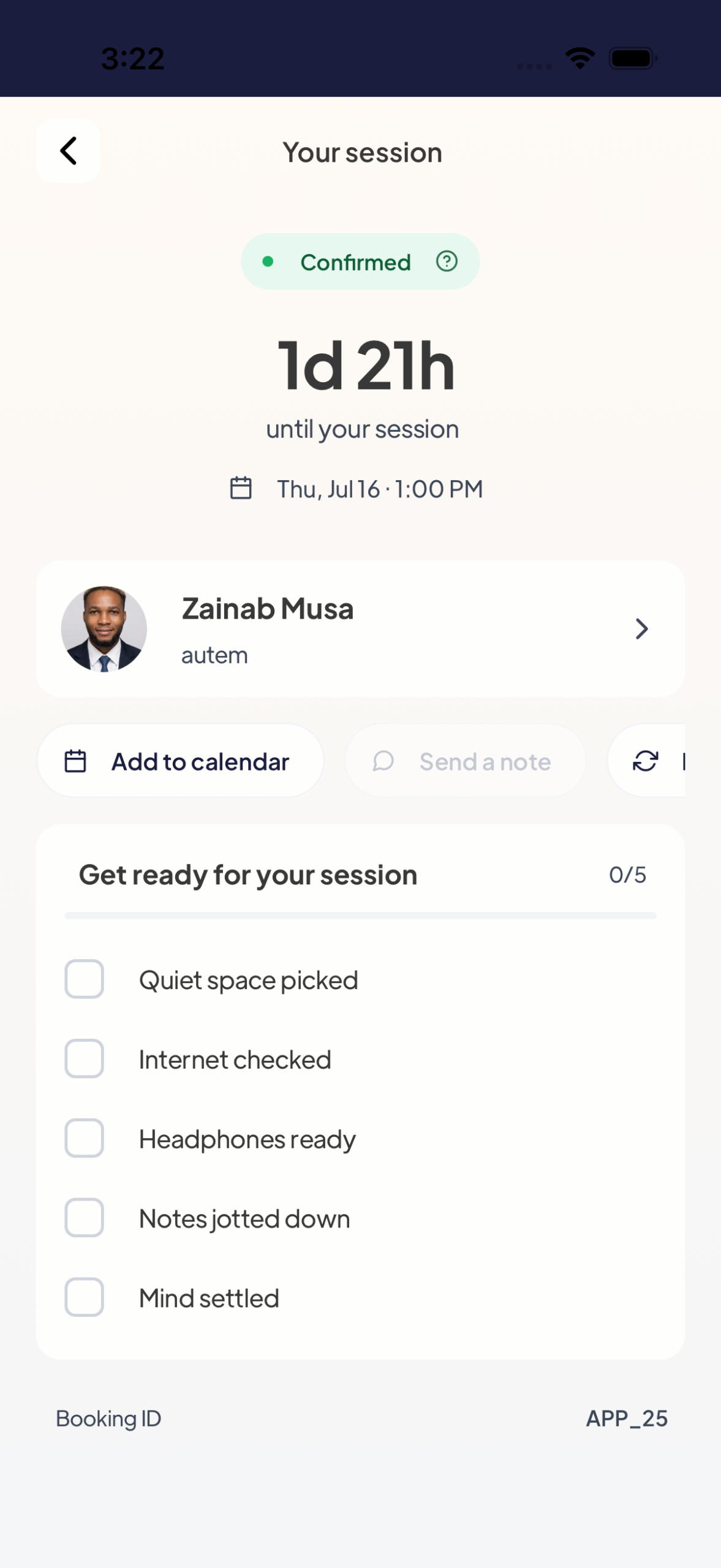
- 🔒 Find a private, quiet space where you can speak openly.
- 📶 Check your internet a few minutes early — Wi-Fi or strong mobile data. (Test your speed at fast.com if unsure.)
- 🎧 Use headphones if you can — better sound and more privacy.
- 🔋 Charge your phone or keep it plugged in.
- 📝 Jot down a few things you want to talk about.
When can you join your session?
This is the question we get most, so here it is clearly:
| Condition | Detail |
|---|---|
| How early? | The Join option opens 20 minutes before your start time. |
| How late? | You can still join until 10 minutes after the scheduled end time. |
| Therapist must accept first | Your session must be accepted/confirmed by your therapist. A session still marked pending can’t be joined yet. |
| Time zone | All times are West Africa Time (Lagos). If you’re travelling, double-check the local time. |
⏰ If you try too early, too late, or before your therapist has accepted, you’ll see “You cannot join this session by now.” That’s a timing or status check — not an error with your account. (More on this below.)
Step 1 — Open the app and find your session
Open Mytherapist.ng a few minutes before your start time. Your upcoming session appears in two places:
- On the Home screen under “Happening Next.”
- Under the Appointments list in the Therapy tab.
When it’s within the join window and your therapist has accepted, the button changes from “Prepare for session” to “Join your session.”
Step 2 — Tap “Join your session”
Tap Join your session.
💬 Heads-up — this opens your session chat first. That’s normal and intended, not a mistake. The chat is where your session lives; the call starts from there. (If you expected the video to open immediately, you’re not doing anything wrong.)
Step 3 — Start the video or audio call
In the session chat, tap the video/call icon at the top of the screen. This starts the pre-call check.
Step 4 — Allow your microphone (and camera)
Before you enter the call, the app runs a quick check and asks for permission:
- 🎤 Microphone — required. You must allow it to join. If it’s blocked, you’ll see “Microphone access is required to join the call.”
- 📷 Camera — optional. Allow it for video, or skip it to join audio-only (a great option if you’re not ready to be on camera, or your connection is weak).
The pre-call check also tests your mic, speaker, and connection so there are no surprises.
💡 Want an audio-only session? Just join with your camera off (or don’t grant camera permission). Your therapist can still hear you perfectly.
Step 5 — Tap “Join Call” — you’re in
Tap Join Call and you’ll enter the secure session room. From here you can:
- Mute / unmute your microphone.
- Turn your camera on or off.
- End the call when your session is over.
That’s it — you’re in your session. 🎉
During your session
- If your connection wobbles, the call will try to reconnect on its own. If it doesn’t, leave and tap Join again — you can re-enter within the same window.
- You can switch your camera and mic on or off at any time.
- When you’re finished, tap End to leave. Your therapist may mark the session complete afterwards.
Troubleshooting: common issues when joining
| What you see | Why | What to do |
|---|---|---|
| “You cannot join this session by now” | You’re outside the window (opens 20 min before, closes 10 min after the end), or the therapist hasn’t accepted yet | Check the time and that your session is accepted/confirmed, not pending. Wait until 20 minutes before. |
| “I tapped Join but it opened a chat” | Expected — the call starts from the chat | Tap the video/call icon at the top of the chat. |
| Camera or mic not working / “Microphone Required” | Device permissions are off | Allow microphone (required) and camera (optional) in your phone’s settings, then rejoin. Microphone must be on to join. |
| They can’t see or hear me | Camera/mic toggled off, or permission denied | Turn your camera/mic on in the call; check permissions. |
| Call screen is blank or won’t connect | Network or a temporary glitch | Switch to a stronger network, close and reopen the app, and rejoin. |
| Poor quality / keeps dropping | Weak connection | Move closer to your router, switch Wi-Fi ↔ mobile data, turn your camera off to save bandwidth, use headphones. |
For more video and audio troubleshooting, see Video and audio sessions.
Frequently asked questions
How do I join my therapy session on Mytherapist.ng?
Open the app a few minutes before your start time, find your session under Happening Next or Appointments, tap Join your session, then tap the call icon in the chat, allow your microphone, and tap Join Call.
How early can I join my session?
You can join from 20 minutes before your start time, up until 10 minutes after the scheduled end time.
Why does it say “You cannot join this session by now”?
You’re either outside the join window or your therapist hasn’t accepted the session yet. Make sure it’s within 20 minutes of your start time and that your appointment shows as accepted/confirmed, not pending.
Do I need to download Zoom or any other app?
No. Your session runs inside the Mytherapist.ng app as a secure video or audio call. There’s nothing extra to install and no link to copy.
Can I do an audio-only session without video?
Yes. Join with your camera off (or don’t grant camera permission). You’ll have a voice-only session, which is perfect for a weak connection or if you’d rather not be on camera. Microphone access is still required.
Why did tapping “Join” open a chat instead of the call?
That’s expected. Your session lives in the chat, and the call starts from there — just tap the video/call icon at the top.
What if my internet drops during the session?
The call will try to reconnect. If it doesn’t, leave and tap Join again to re-enter — you can rejoin any time within your session window.
Is my therapy session private and secure?
Yes. Sessions are one-to-one with your therapist inside the app. For privacy, find a quiet space and use headphones.
You’ve got this
Joining your session comes down to five taps: open the app early → Join your session → call icon → allow your mic → Join Call. Give yourself a few minutes’ head start, find a quiet spot, and the technology fades into the background — leaving you free to focus on you.
👉 Booked but not sure what to expect? Open the Mytherapist.ng app a few minutes before your session and tap Join.
Related guides
- How to book a therapy session online
- Video and audio sessions (full troubleshooting)
- Booking and appointments
- Booking through your organisation or HMO benefits
Last updated: 24 June 2026. Steps reflect the live Mytherapist.ng app and its verified join rules (join window: 20 minutes before to 10 minutes after; therapist must accept first).